
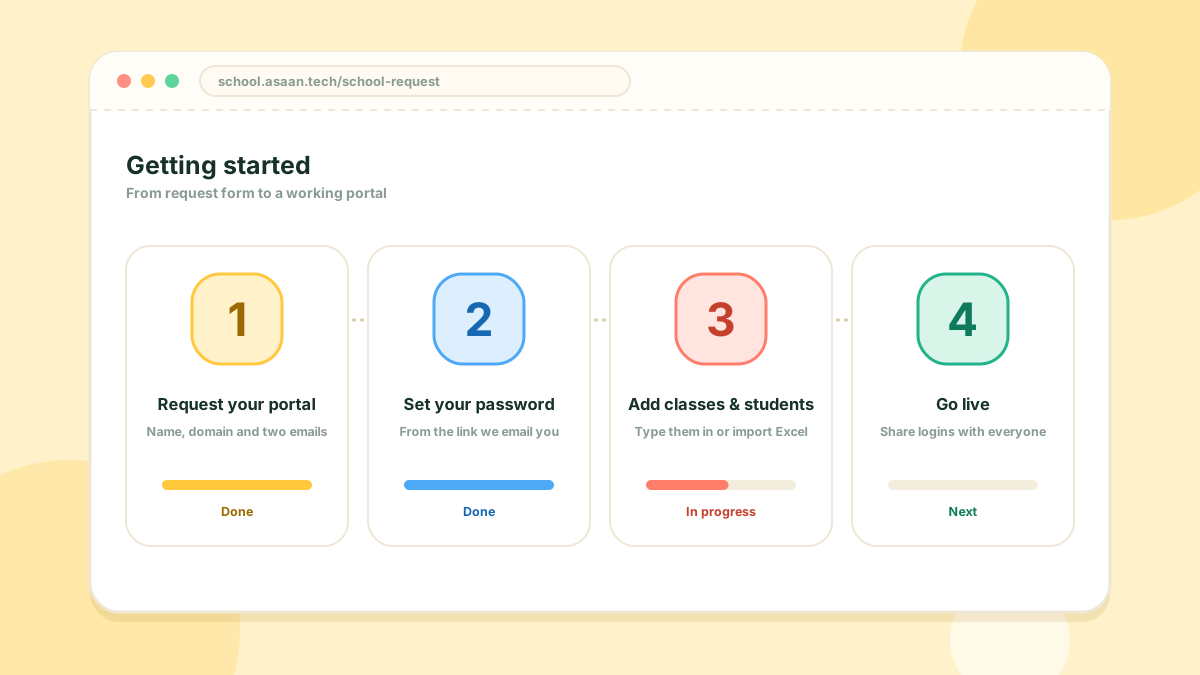
Getting started
Getting started with Asaan School
From the request form to a working portal, in four steps.
Guides, what's new, and quick answers to the questions schools ask most.
From the request form to a working portal, in four steps.
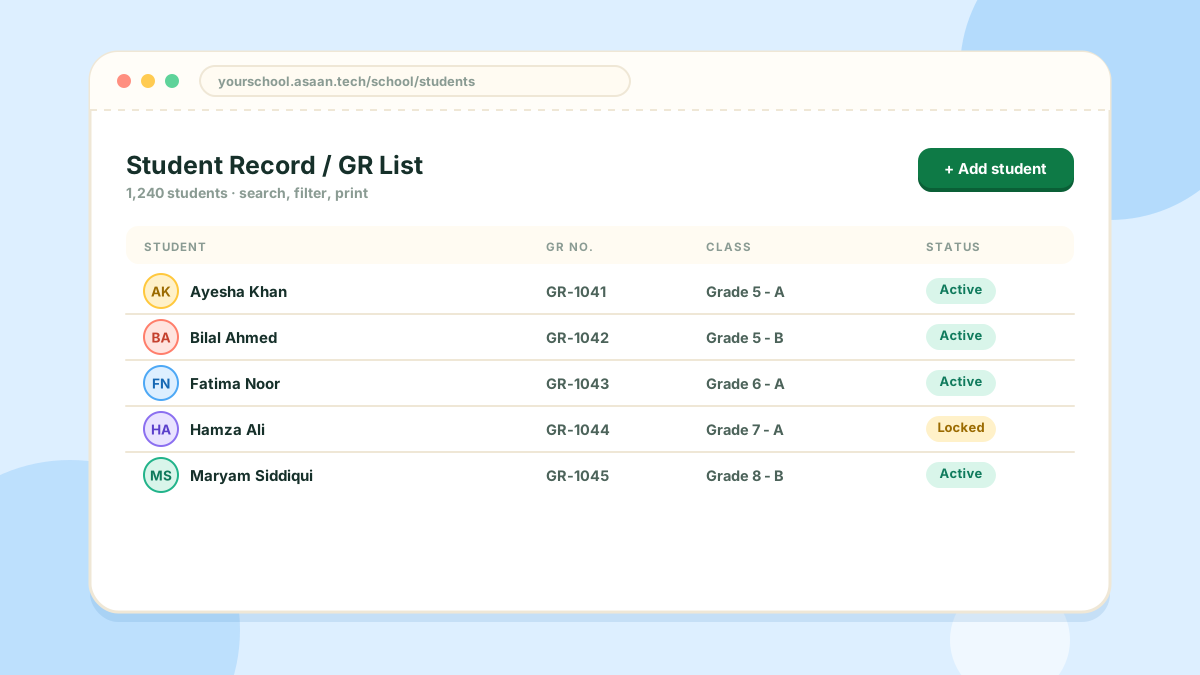
Keep every student's admission details in one searchable list.
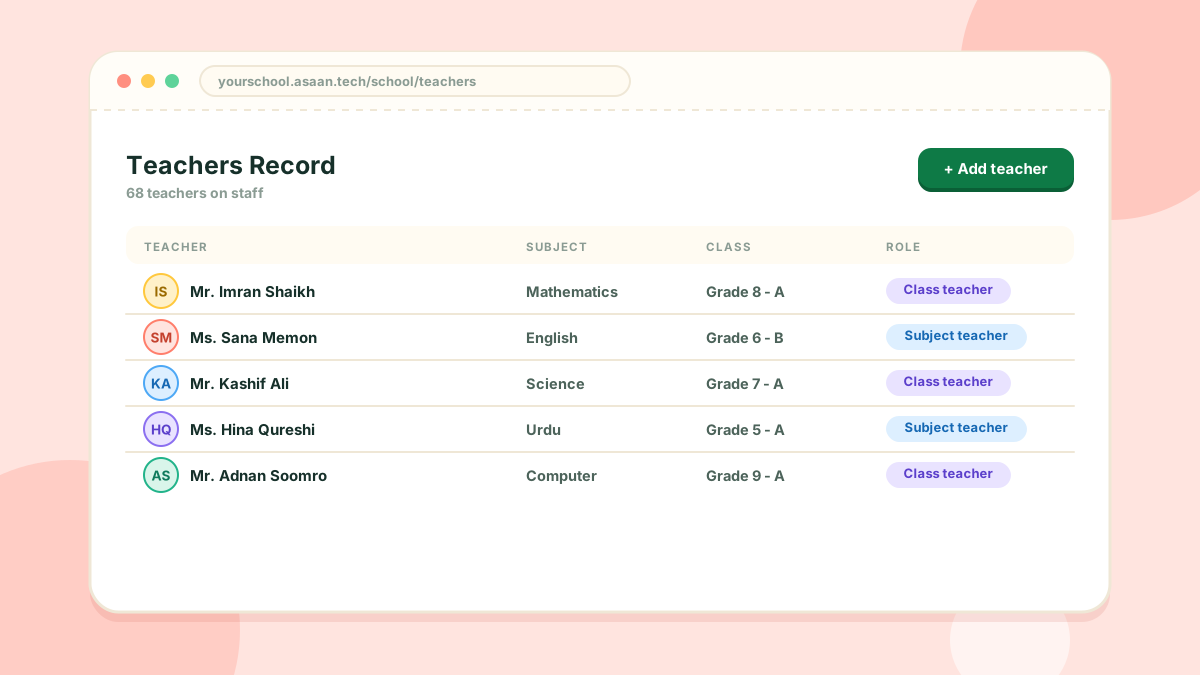
Staff profiles, logins and the classes each teacher looks after.
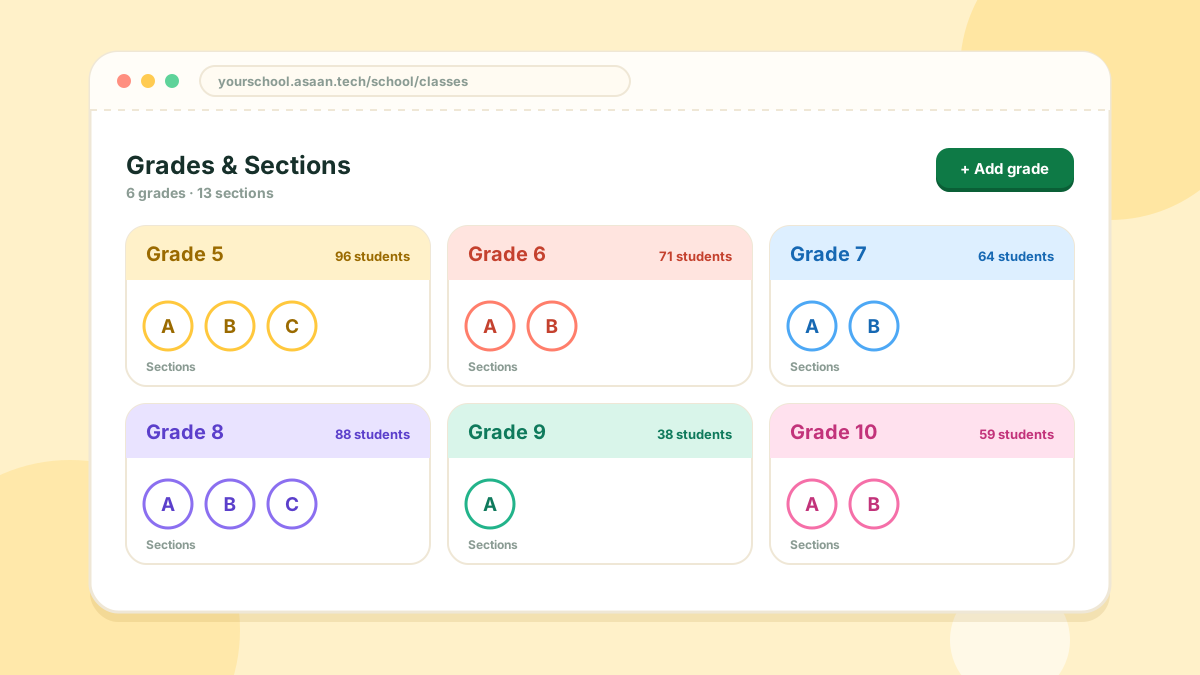
Organise the school into grades, and split a grade into sections.
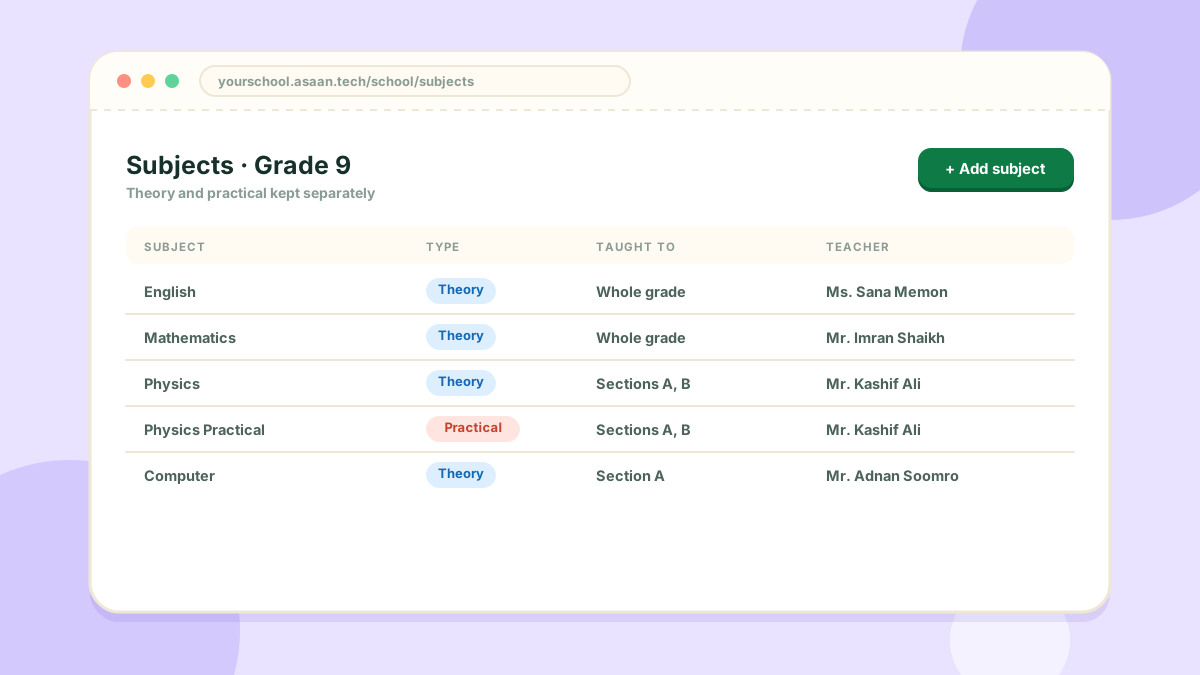
Add the subjects of each grade, with practicals kept separately.
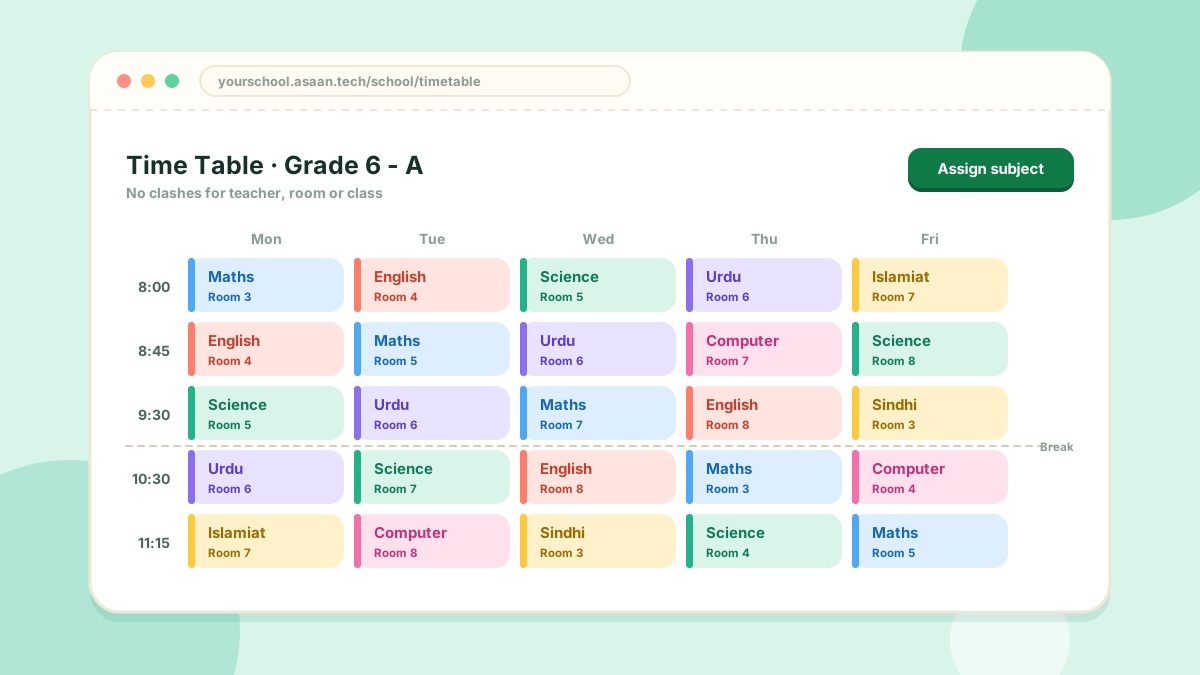
Assign subjects to teachers, rooms and time slots without clashes.
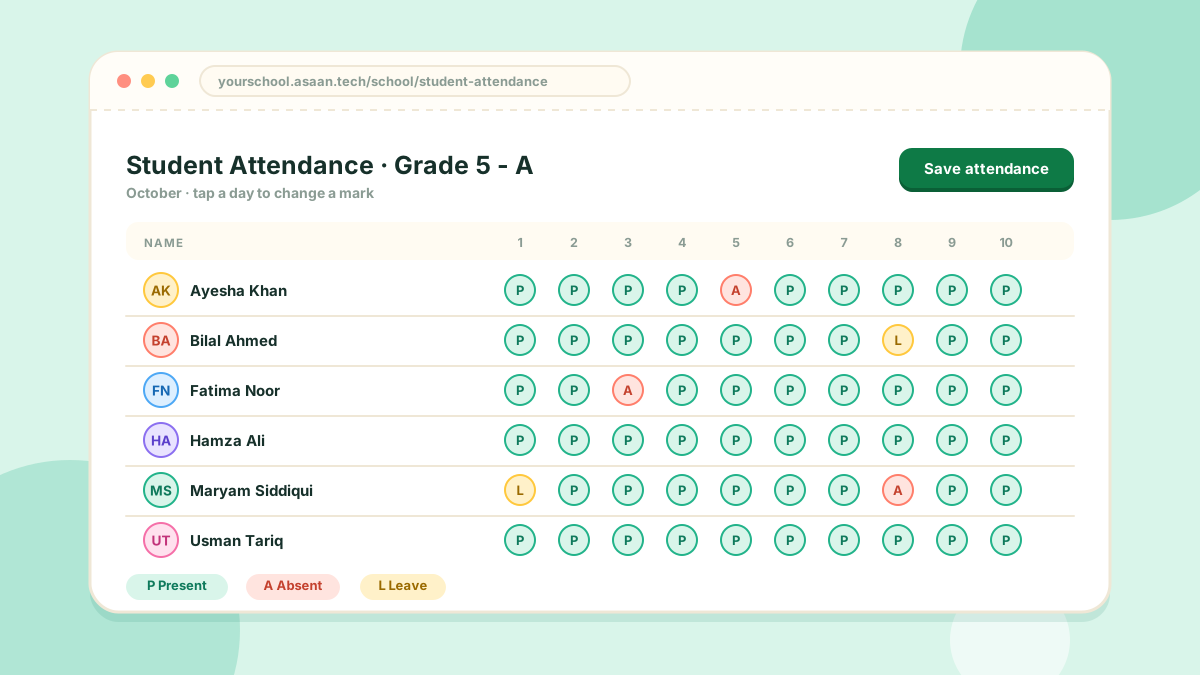
Daily attendance by class, from the console or the mobile app.
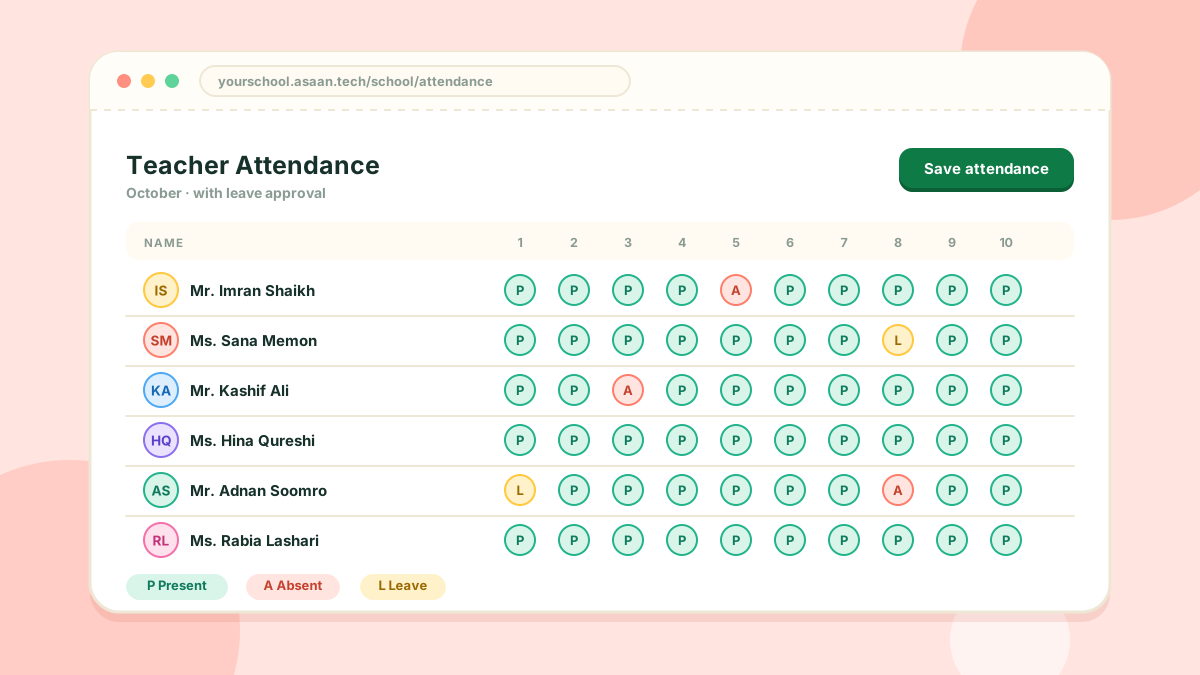
Record staff attendance and handle leave requests.
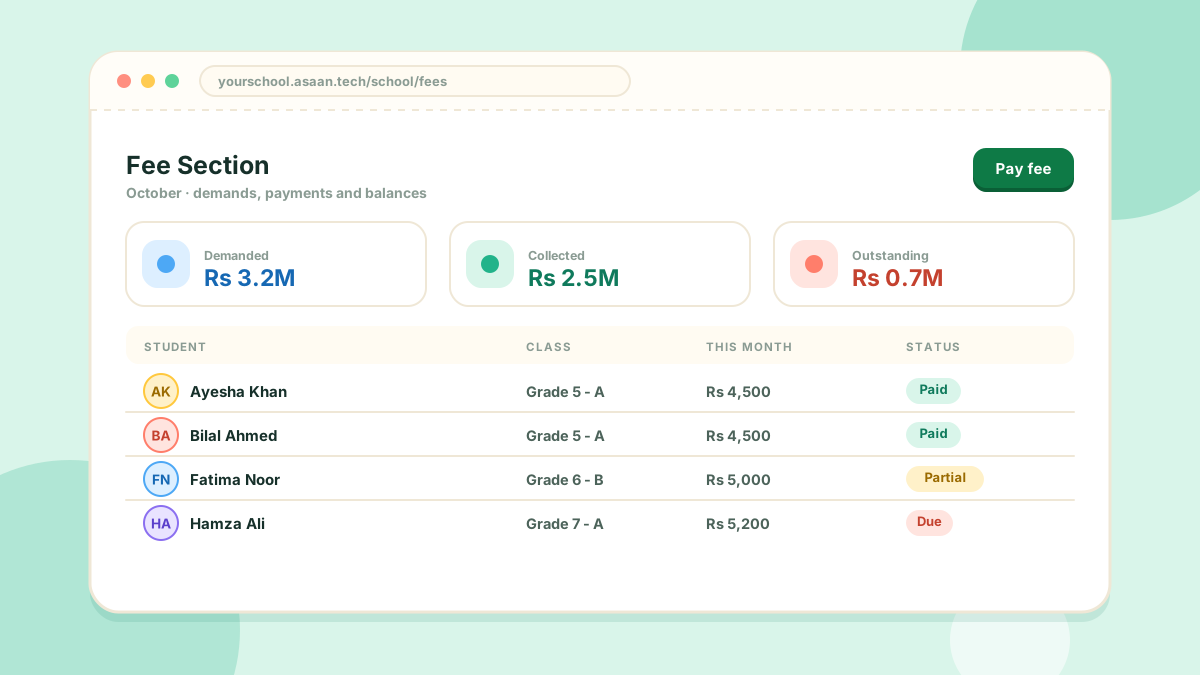
Set fees for a class or a student, record payments and see who still owes.
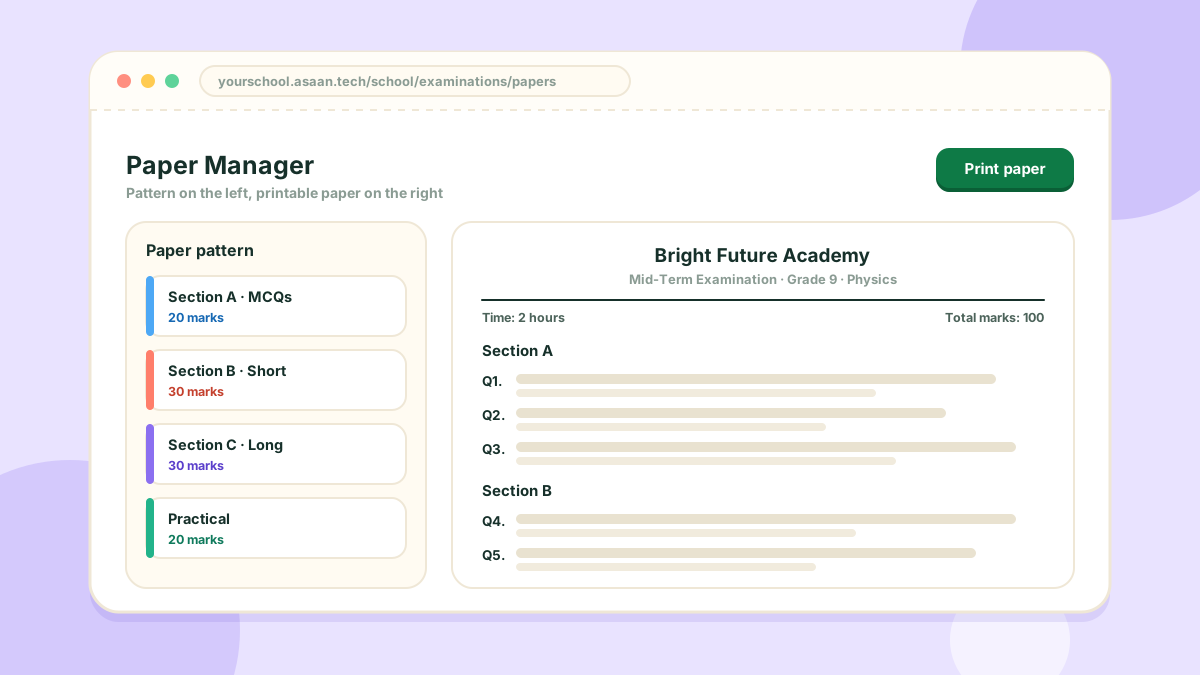
Build papers from a question bank and a reusable pattern, then print.
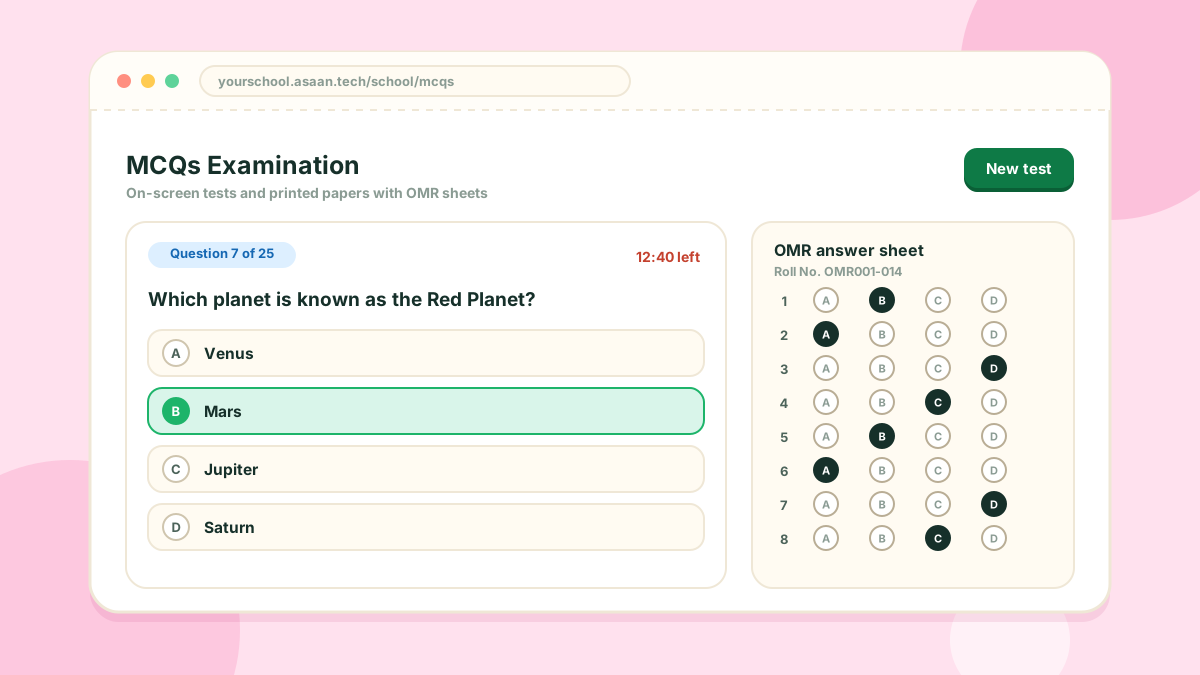
Multiple-choice tests that mark themselves, or print with OMR sheets.
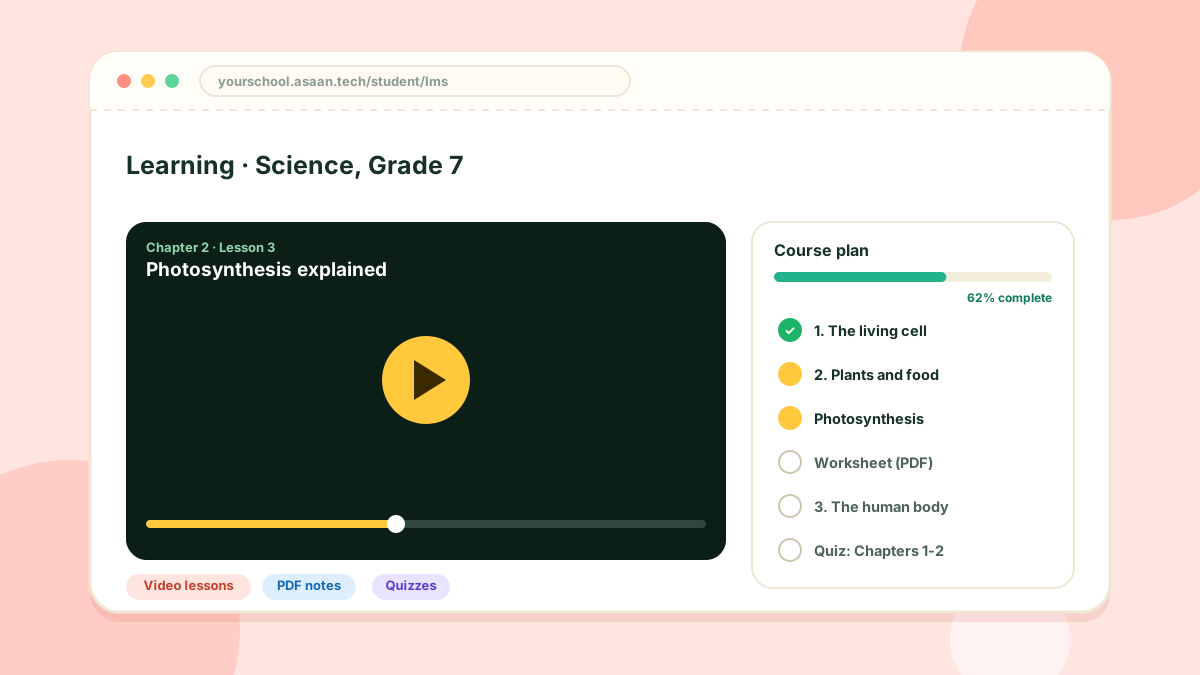
Course plans with video and PDF lessons, and progress for every student.
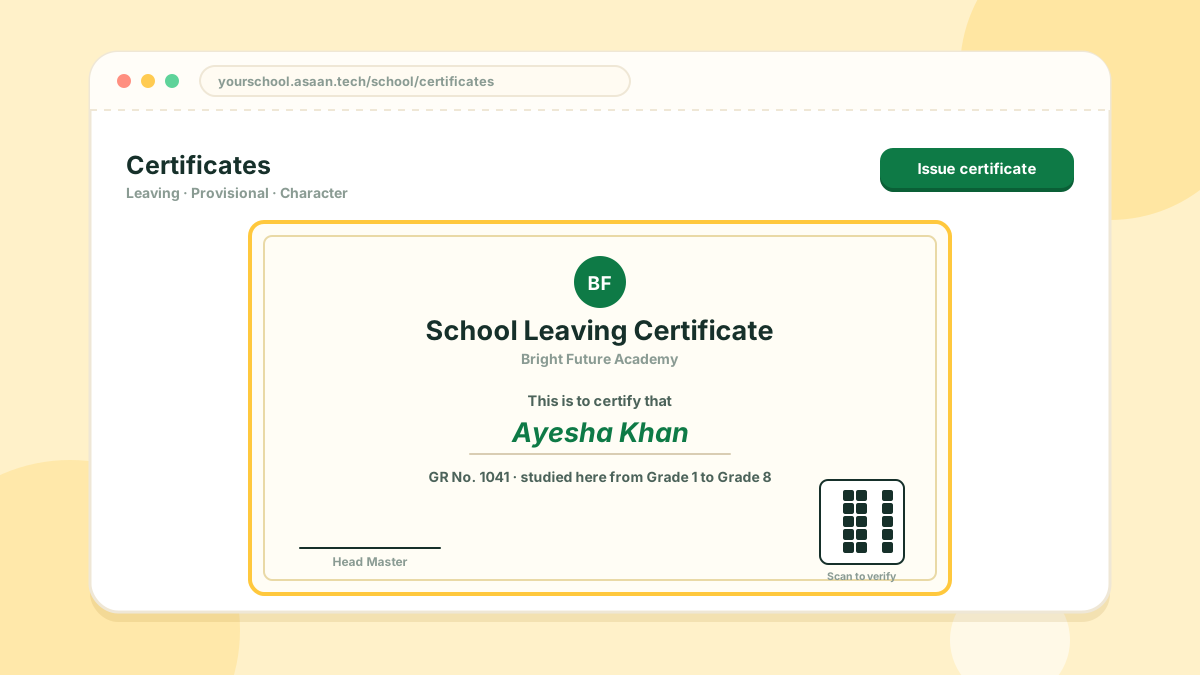
Issue leaving, provisional and character certificates anyone can verify.
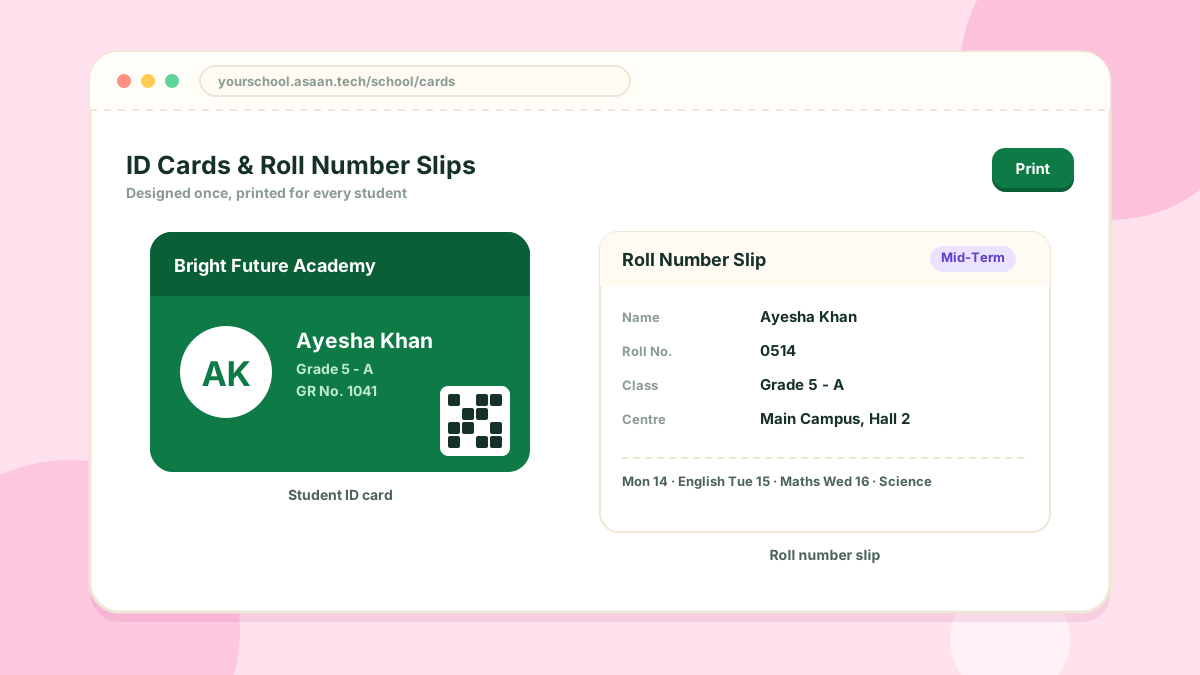
Print student cards with a QR code, and slips for every examination.
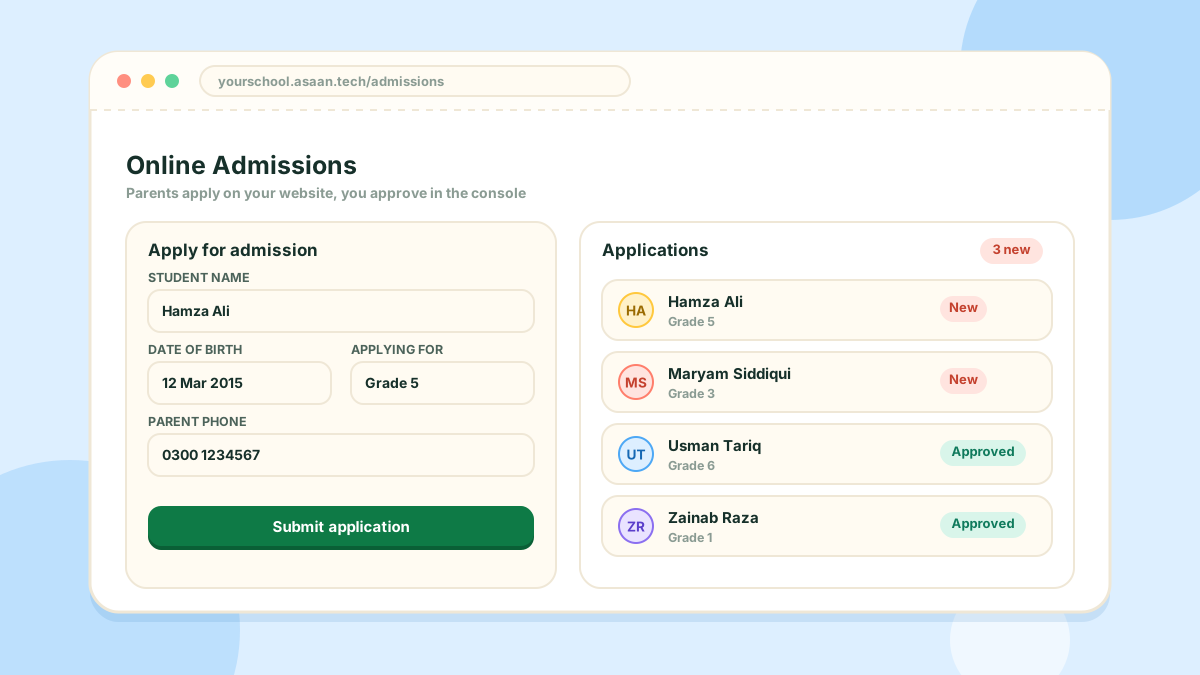
Parents apply on your website; you approve in the console.
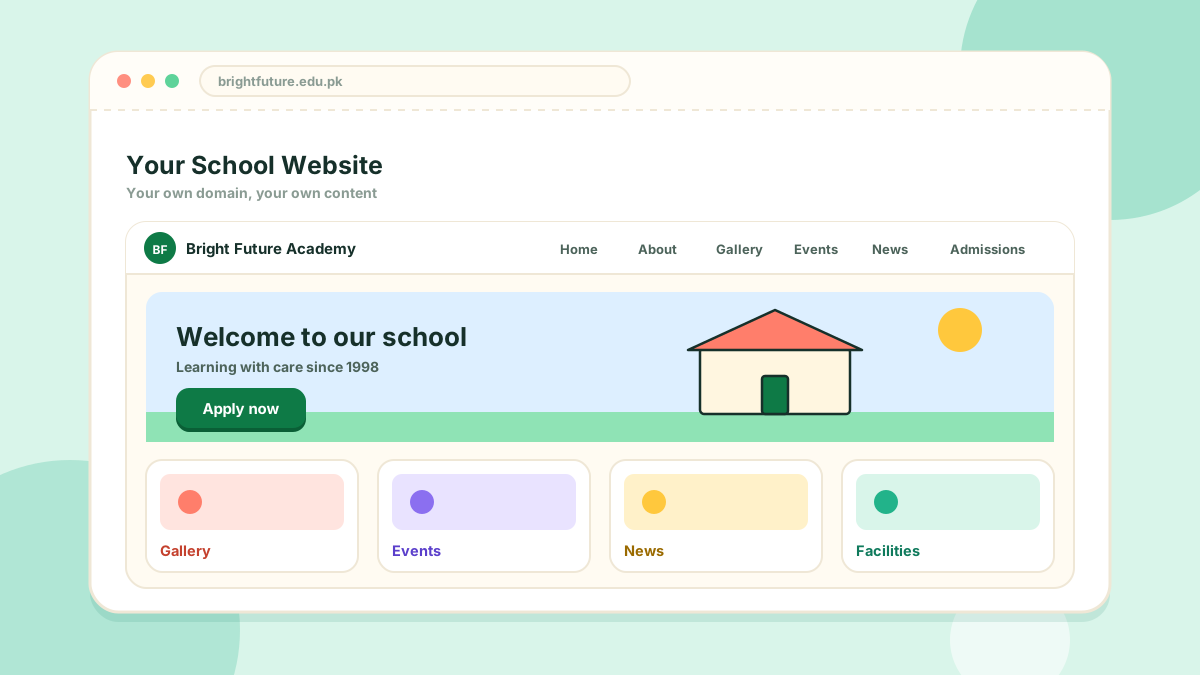
A public site on your own domain, edited from the console.
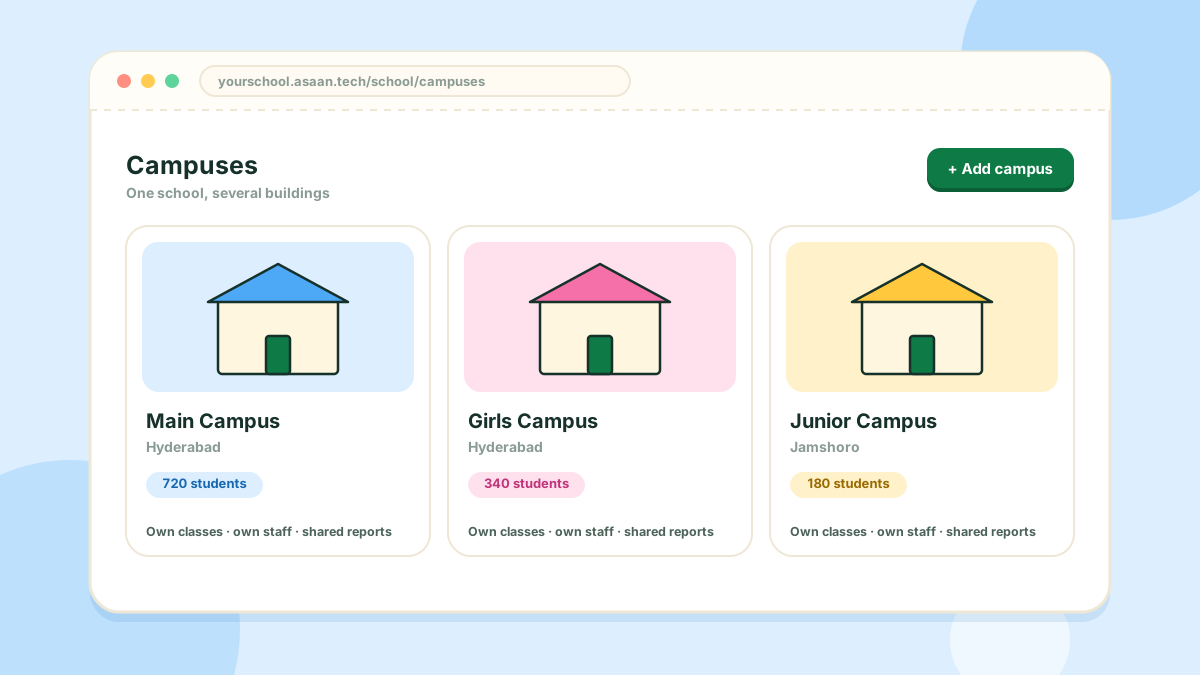
Run more than one campus under a single school account.
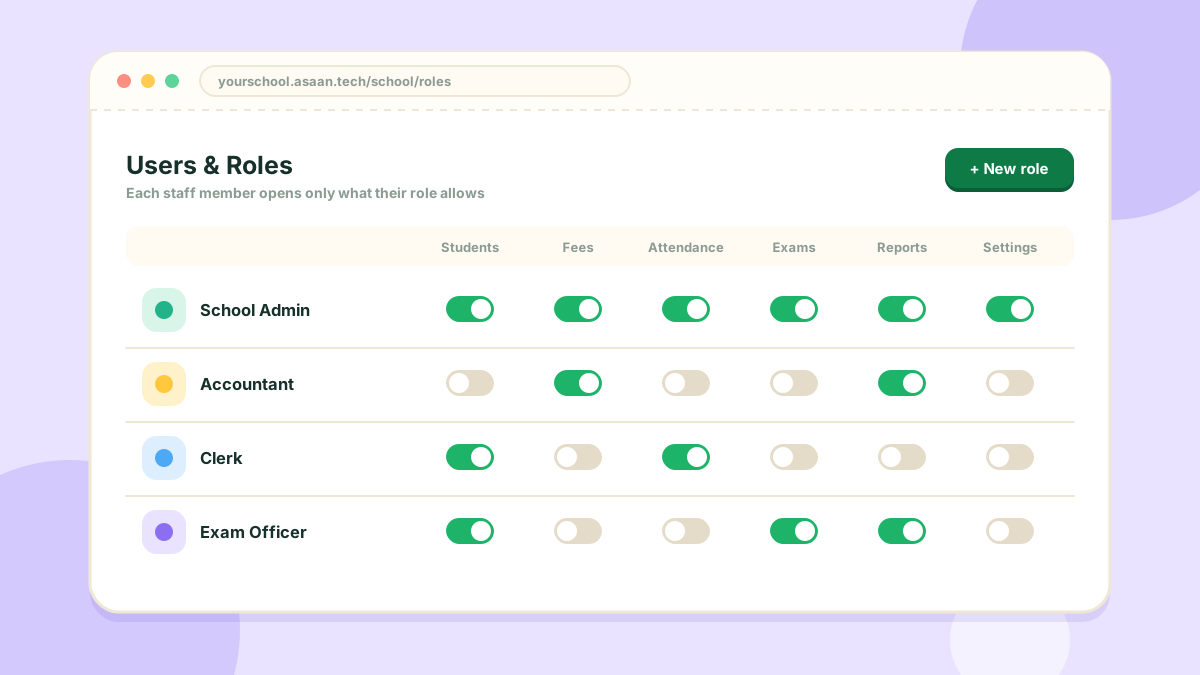
Give each staff member access to exactly what they need.
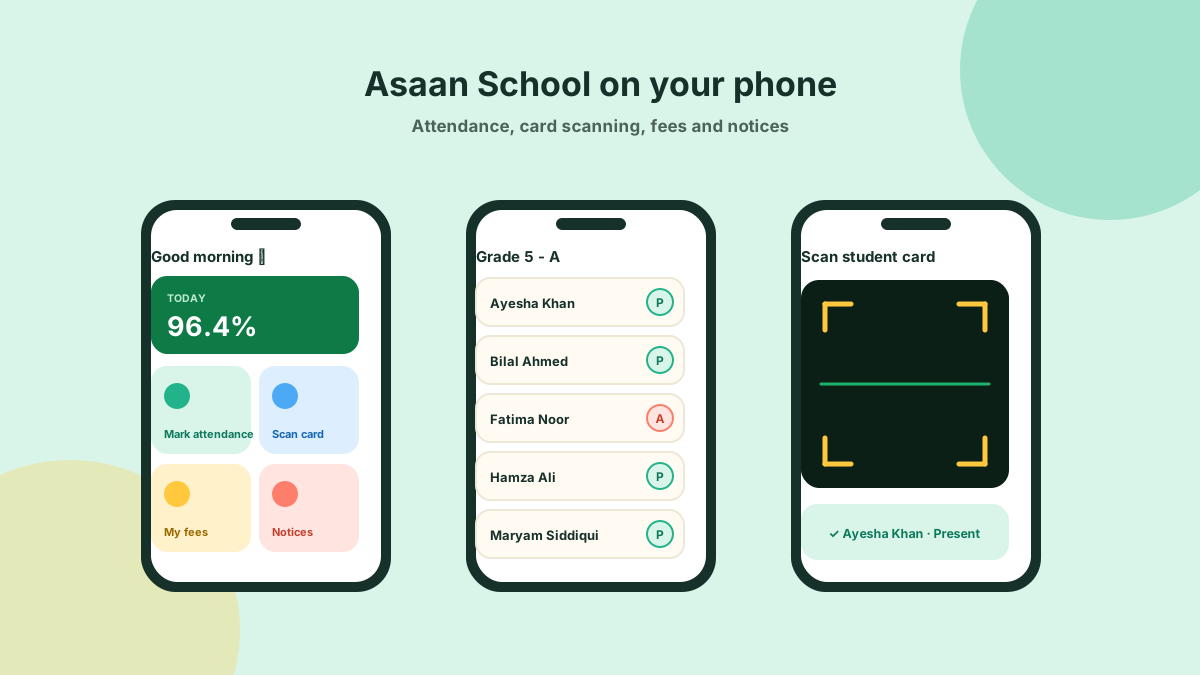
Attendance, card scanning, fees and notices on Android.
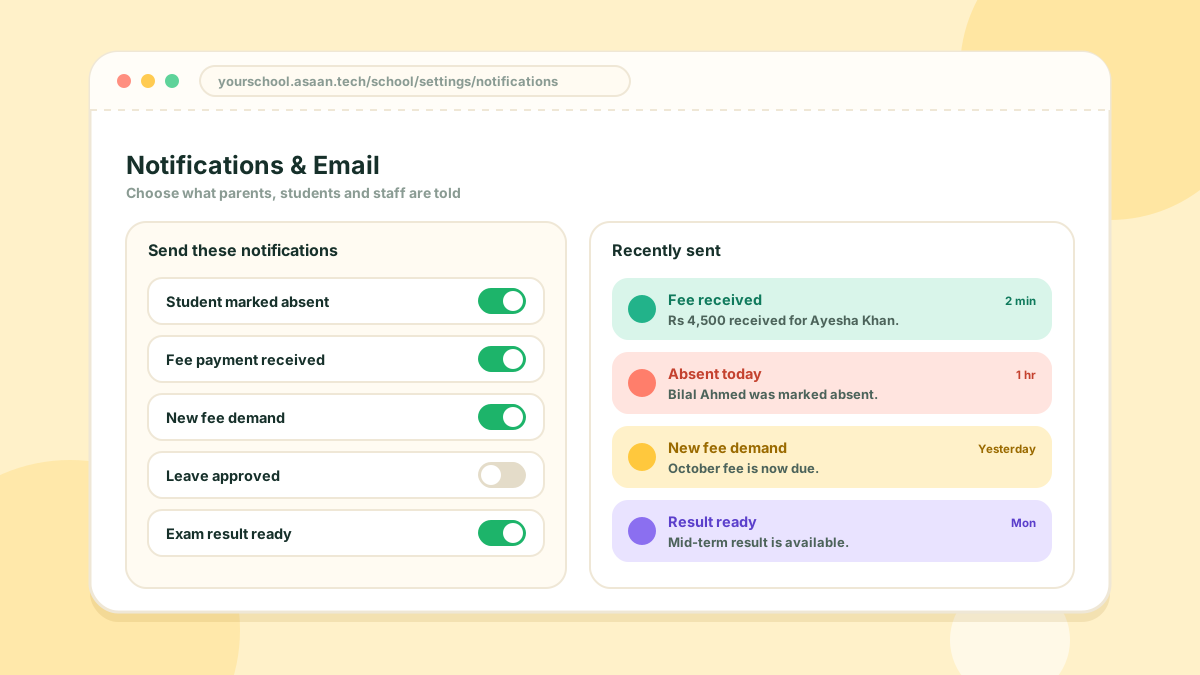
Choose what your school tells parents, students and staff.
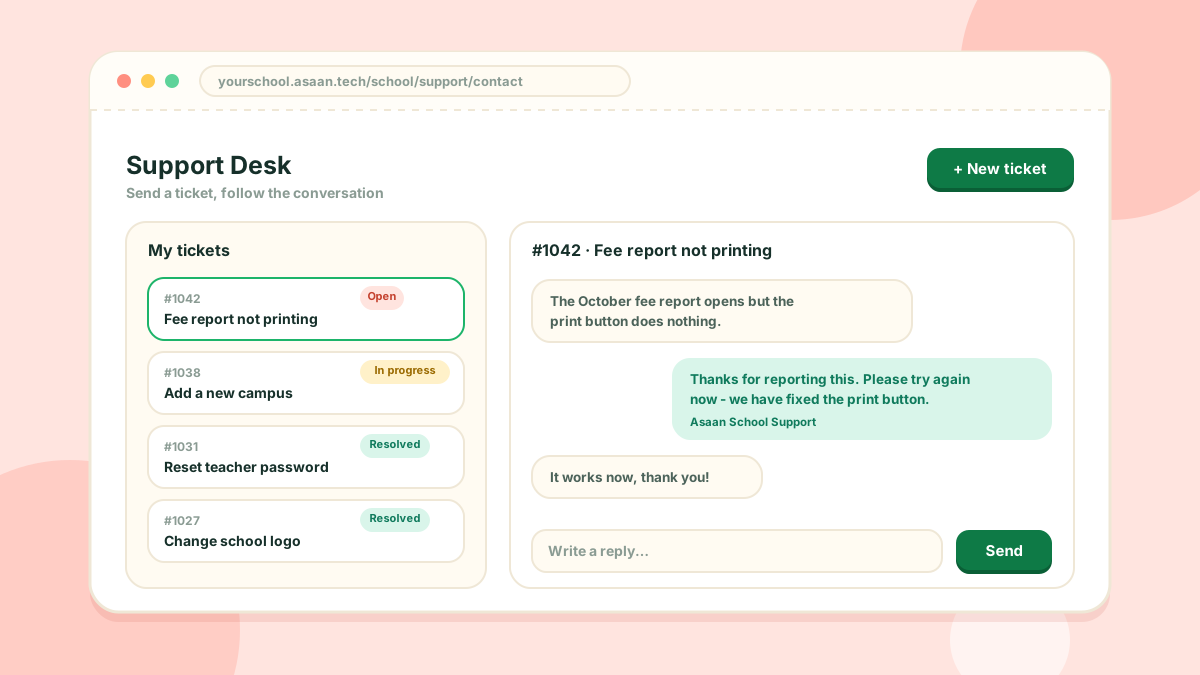
Ask us for help, and let students and teachers ask you.
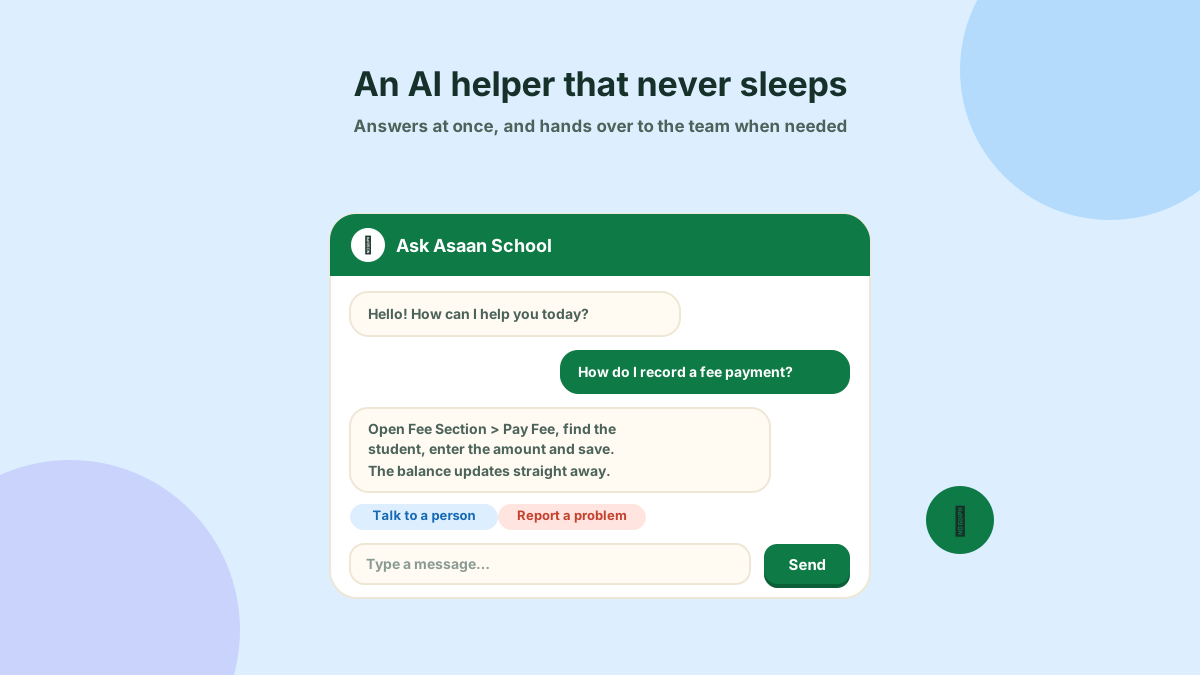
An AI helper that answers at once, on your website and in the console.
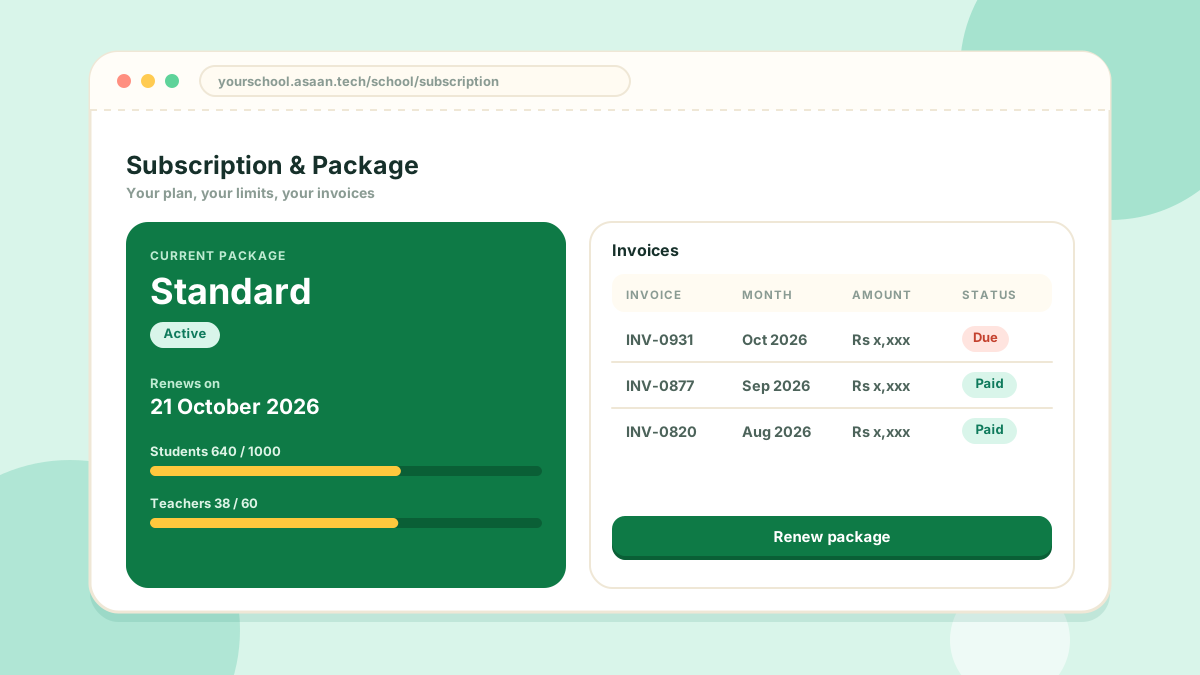
How the trial, the grace period and renewals work.
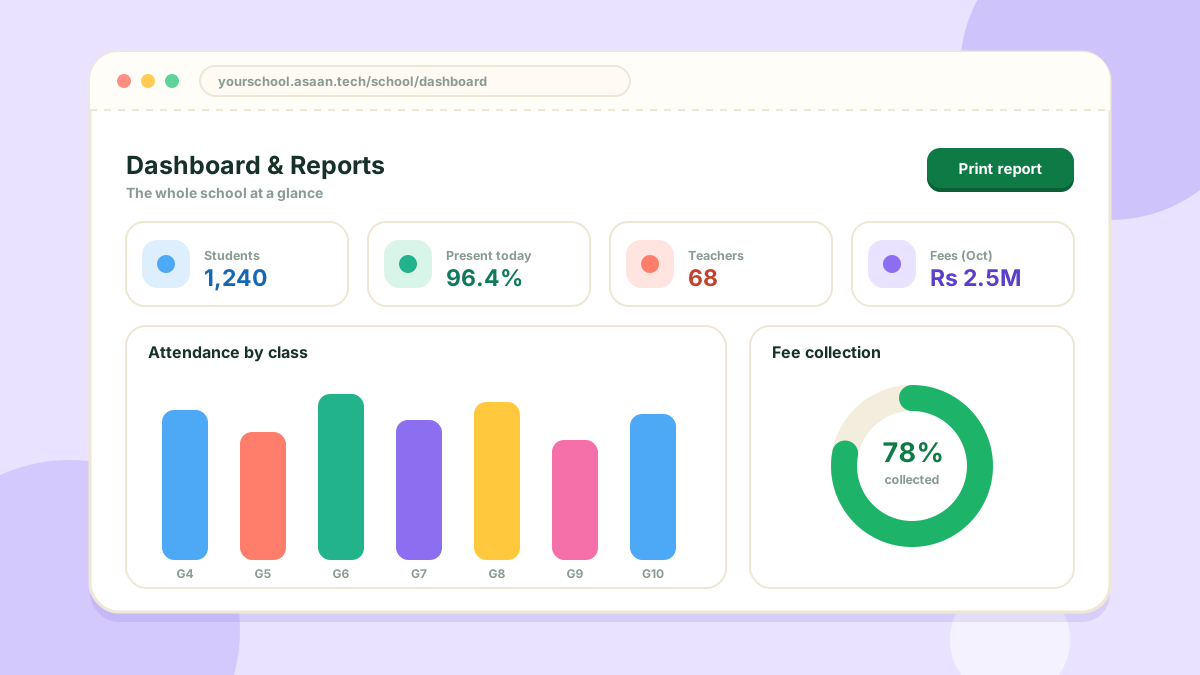
See the whole school at a glance, and print what you need.
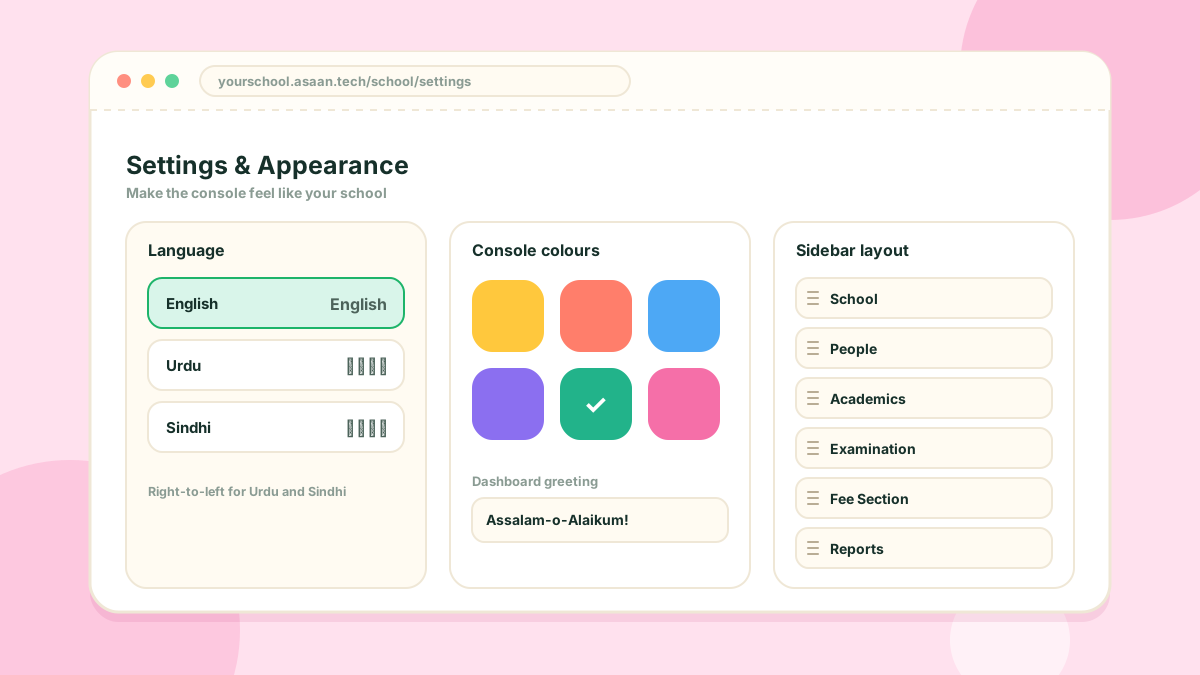
Make the console feel like your school.
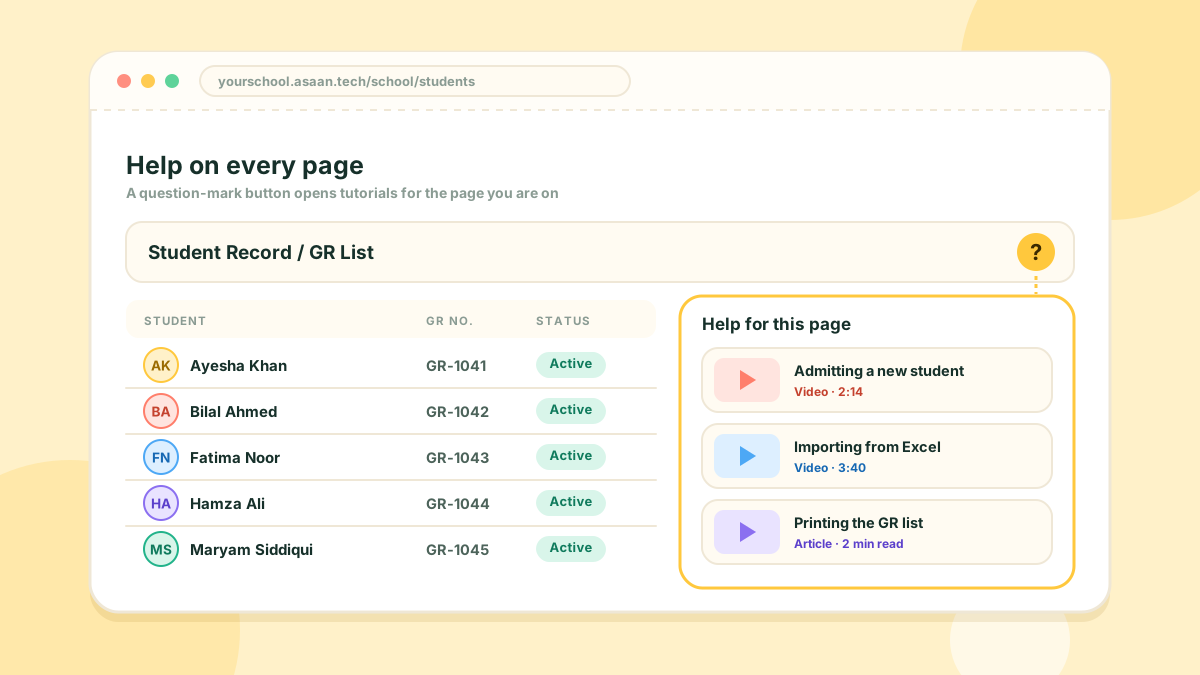
A help button beside the page title opens a guide for that exact page.
Asaan School is a complete school management system. It keeps your student and teacher records, attendance, timetable, examinations, fees, certificates and your school website in one connected portal, with a separate login for every student, teacher and staff member.
Any school, from a small single-campus school to a group with several campuses. Each school gets its own portal, and inside it there are separate logins for the School Admin, Head Master, staff, teachers and students.
The main modules are:
You only see the modules that are switched on for your school.
No. Asaan School runs in a web browser on a computer, tablet or phone. There is also an Android app for everyday tasks.
The portal is available in English, Urdu and Sindhi. Urdu and Sindhi are shown right-to-left. A school can also adjust the wording used on its own portal from Setting > Language Settings.
Yes. Every page works on a phone browser, and wide tables turn into easy-to-read cards on small screens. The Android app adds quick access for attendance and card scanning.
Yes. Every school gets a public website on its own domain or sub-domain, with a home page, gallery, events, news, testimonials, facilities and login links for students and staff.
Open Request a portal on the home page and fill in your school name, a domain or sub-domain, and the email addresses of your Head Master and Admin. A logo, phone number and address are optional.
Your portal is created straight away. The Head Master and the Admin each receive an email with a Set your password link. After choosing a password they are signed in to the school dashboard.
First check the spam or junk folder. The link in the email works once and expires after 48 hours. If it has expired or never arrived, contact us and we will send a fresh link to the same address.
Either works. A sub-domain is the quickest way to start and needs nothing from you. A custom domain (for example school.edu.pk) is your own address, which you point to our server. You only need to provide one of them.
A good order is:
Most later modules depend on grades, subjects and student records being in place.
Yes. Both the Student Record and Teachers Record pages accept an Excel (.xlsx) file, so you do not have to type every record by hand. Fee records can be imported from a sheet too.
Yes. A new school starts with a 30-day trial with every feature unlocked, for up to 300 students and 15 teachers.
Everyone signs in from your own school website. The login page has a tab for each role: Student Login, Teacher Login, Staff Login, Head Login and Admin Login.
The school does. When you add a teacher or a student, their login is created with the record, and you can print or share the details with them.
It depends on who you are:
Open your profile from the top of the console, enter a new password and save.
Yes. Under Users, Roles and Assign Role you can create roles such as accountant or clerk, choose exactly which sections each role can open, and assign a role to each staff user.
Yes. From a student or teacher record the school owner can open that person's own portal to check what they see. Their password is not changed.
Yes. Student cards carry a QR code that can be scanned to sign in and to mark attendance.
The General Register is the school's official list of admitted students. In Asaan School every student record carries its GR details, and you can search, filter and print the list at any time.
Open Student Record / GR List, click Add, fill in the admission form and save. Students who apply through Online Admissions are added when you approve their application.
Yes. Cards are printed from the student records, each with a QR code. The card layout is designed once and reused for every student.
A student's grade and section are part of their record. Change them there and their attendance, timetable and fees follow the new class.
Yes. Add each campus under School > Campuses. The number of campuses allowed depends on your package.
A grade can be split into sections, such as 5-A and 5-B. Each section can have its own class teacher and its own timetable. A subject can be taught to the whole grade or to chosen sections only.
The teacher responsible for a grade or a section. A class teacher sees and marks attendance for their own class, and a section class teacher is limited to their own section.
Open Academics > Subjects, choose the grade and add its subjects. A subject with a practical part can have theory and practical kept separately, so each gets its own periods and exams.
Use Academics > Assign Subject. Pick the grade or section, the subject, the teacher, the room and the time slot.
Yes. When you assign a period, the system checks that the teacher, the room and the class are all free at that time, and refuses a clash.
Under Academics > Miscellaneous Setting, where you manage rooms and time slots.
Yes. Each teacher and student sees their own periods in their portal.
A class teacher or staff member opens Student Attendance, picks the class and date, and marks each student. It can also be done from the Android app, including by scanning student cards.
From Teacher Attendance > Mark Attendance. Teacher leave requests are handled under Leave Approval.
Yes. They send a leave request from their own portal, and the school approves or rejects it under Student Leaves or Leave Approval.
Under Setting > Holidays. Holidays are left out of attendance, so nobody is counted absent on those days.
Yes. Setting > Attendance Mark Status lets you manage the statuses used when marking, such as present, absent, late or leave.
The Reports section has an attendance report for teachers and a student report, which you can filter by class and date range and print.
Open Fee Section. Use Group to apply a fee to a whole class or group of students at once, and Individual Fee for a single student.
Open Fee Section > Pay Fee, find the student, enter the amount received and save. The student's balance updates immediately.
Yes. You can print fee demand statements for a student or a class.
Online payment is available when the school has connected its payment gateway under Setting > Payment Gateway. Without it, payments are recorded manually by the school.
Open Fee Section > Fee Reports for a per-class breakdown of demands, payments and outstanding balances.
Yes. Each student sees their own fee demands, payments and balance in their portal.
It lets you keep a question bank for each subject, define paper patterns, set up examinations for each class, and print the papers and date sheets.
A reusable outline of a paper: its sections, the kinds of question in each, and the marks. You build it once and use it to make papers quickly.
Yes. Subject teachers can add questions and prepare papers for the subjects they teach.
A separate module for multiple-choice tests. It has its own question bank per subject, on-screen tests for students, printed MCQ papers with OMR answer sheets, exam slips and results.
Yes. The school schedules an online MCQ test, and students take it from their portal. It is marked automatically.
Yes. The system prints the question paper and an OMR answer sheet for each student, and you record the results afterwards.
Yes. Roll number slips are printed for the students of an examination, using a layout designed for your school.
Results appear in the student's own portal once the school has recorded or published them.
It lets teachers build a course plan for a subject, divided into chapters and sections, and attach video and PDF lessons. Students follow the plan from their portal.
Video lessons and PDF documents. Quizzes are delivered through the MCQs and Examination modules.
Yes. The module tracks each student's progress through the lessons of a course.
Leaving certificates, provisional certificates and character certificates. Each one can be reprinted later.
Every certificate carries a QR code. Scanning it opens a verification page on the school's portal that confirms the certificate's details.
Yes. Layout, wording and fields are designed for the certificate, and your school's name and logo are used when it is printed.
Yes. With Online Admissions switched on, your website shows an application form. Parents fill it in and the application arrives in your console.
Open Admissions > Online Admissions, review the application, then approve or reject it. An approved applicant becomes a student record.
Use the Website section of the console: Portal Setting for the main content, plus Gallery, Events, News, Testimonials and Facilities. View Portal opens the public site.
Yes. Your school website uses a theme, and themes can be changed. Your logo, colours and content stay your own.
Yes. Setting > Console Appearance changes the console's colours, Layout Setting reorders the sidebar, and Dashboard Greeting sets the welcome message.
Yes, there is an Android app. When it is available for download, the link appears on the login page.
Teachers can see their classes, mark attendance and scan student cards for the classes or sections they are responsible for.
Yes. Setting > Mobile Notifications controls which notifications are sent, and Setting > Email sets the school's own outgoing email.
We are installing an update. It usually takes a few minutes. Your data is not affected; try again shortly.
The price depends on the package you choose. Contact us by email or WhatsApp from the home page and we will share the current packages and help you pick the right one.
Every feature, for 30 days, with up to 300 students and 15 teachers.
You get a grace period of 10 days in which the portal keeps working. After that the portal is locked to the renewal screen until the subscription is renewed. Your data is kept.
Open Website > Subscription & Package in the school console. You can see your current package, its end date and your invoices, and renew from there.
From the Subscription & Package page, where an invoice is created for you. Online payment is offered there when available; otherwise contact us for the payment details.
Yes. Every subscription invoice can be opened and printed from the Subscription & Package page.
Yes. Each package sets the maximum number of students, teachers and campuses. When you reach a limit the system tells you, and upgrading the package raises it.
Yes. Modules are enabled per school, so one can be added at any time. Ask us and it will appear in your sidebar.
No. Every school's records are kept separate, and each login only reaches its own school.
Only people the school has given access to: the student, their teachers for the classes they teach, and school staff according to their role.
For safety we never send passwords by email. You receive a one-time link and choose your own password, so nobody else ever knows it.
Yes. Lists and reports can be printed, and we can help you with an export of your school's records on request.
From inside the school console, open Support > Contact Support and send us a ticket. From the public website, use the Support Center chat, or the email and WhatsApp buttons on the home page.
An AI helper that answers questions about Asaan School straight away, at any time of day. If it cannot help, it can pass your question on to our team.
Yes. Where a tutorial exists for a page, a help button appears beside the page title and opens a video or a written guide for that exact page.
Yes. With the Help Desk switched on, students and teachers send support tickets to the school's own staff from their portal, and the school replies there.
Open Support > Video Tutorials on the website for short step-by-step videos.
Send a support ticket from Contact Support and tell us the page you were on and what happened. A screenshot helps. Feature ideas are welcome the same way.
Our AI helper answers straight away — and can pass you on to the team.
Share this post 💌